What is Google Click ID (GCLID)? How It Tracks Your Ads in 2026

What is a Google Click ID and Why Does It Matter for Your Ads?
A Google Click ID (GCLID) is a unique tracking parameter that Google Ads automatically appends to your destination URLs when someone clicks your ad. This string of characters connects that specific click to everything that happens next on your website, including form submissions, purchases, and phone calls.
Here's the thing most marketers miss: without GCLID, Google Ads is essentially flying blind. It can tell you someone clicked, but it has no idea whether that click turned into a paying customer. And when you're spending thousands on ads each month, that gap between clicks and revenue isn't just annoying. It's expensive.
GCLID solves this by creating a direct line between your ad platform and your conversion data. When someone clicks your ad, Google generates a unique identifier gclid=EAIaIQobChMI8tz and attaches it to the URL. That ID follows the user through your site, gets stored in a cookie, and waits to be matched with a conversion event.
What is GCLID Tracking User For?
The GCLID parameter is primarily used for more granular conversion tracking and offline conversion imports. You can use the gclid paramter to tie conversions in your google ads account to specific keywords, campaigns, ad groups, and even ads. Additionally, the GCLID can be used as the "technical glue" to your offline conversion tracking setup. You can upload conversions post click back into Google Ads campaigns from places like your crm, landing page, call analytics provider, or manual spreadsheet upload. This requires a technical setup if you set it up manually, or you could use an offline conversion tracking automation software like Adscriptly. Lastly, you can leverage offline conversion tracking with the gclid for advanced analytics, which can be used as insights for optimization. Essentially, this gives you the ability to know which keywords, ad groups, and campaigns lead to qualified and converted leads.
What Can You Actually Track With GCLID?
GCLID can track any conversion action you configure in Google Ads or Google Analytics. The identifier itself doesn't limit what you measure. Your setup determines what gets attributed.
Which Conversion Actions Does GCLID Capture?
Common conversion actions tracked via GCLID include:
Form submissions and lead captures. When someone fills out a contact form, the conversion tag fires and passes the stored GCLID back to Google. You now know which keyword drove that lead.
Phone calls from your website. If you use Google's call tracking or a third-party solution, the GCLID connects the click to the call event. You can see which ads generate phone inquiries.
E-commerce purchases. For online stores, GCLID tracks transaction values, product categories, and order IDs. Google Ads can optimize toward revenue instead of just completed checkouts.
App installs and in-app actions. If you're running app campaigns, GCLID works with Firebase to track installs and post-install events like subscriptions or purchases.
The key is setting up your conversion actions correctly. GCLID provides the connection, but you need to tell Google which events actually matter to your business.
How Does GCLID Connect Your Clicks to Real Sales?
This is where GCLID gets genuinely useful. Most marketers stop at tracking form fills. But forms don't pay the bills. Closed deals do.
GCLID lets you import offline conversion data back into Google Ads. When a lead from your CRM closes as a customer, you can upload that conversion with the original GCLID attached. Google then knows which click actually generated revenue.
But the real value from GCLID data comes when you attach actual dollar amounts to those conversions. Instead of telling Google a lead converted, you tell Google that the lead closed for $15,000. Now your campaigns optimize toward high-value customers, not just high-volume leads.
This approach is called value-based bidding. It transforms GCLID from a simple tracking parameter into a revenue optimization engine. Google's algorithms learn which keywords, audiences, and placements drive your most profitable customers, then automatically bid higher to find more of them.
Without GCLID connecting clicks to closed revenue, value-based bidding isn't possible. The identifier is the bridge between your ad spend and your actual business outcomes.
How Do You Set Up GCLID the Right Way?
You can trigger Google Ads to start capturing the Google click identifier by simply turning on Auto-tagging in your Google Ad account settings.
- Sign in to your Google Ads account
- Click the Admin icon in the left navigation menu
- Select Account Settings under the Account section
- Click "Yes" in the Auto-tagging section
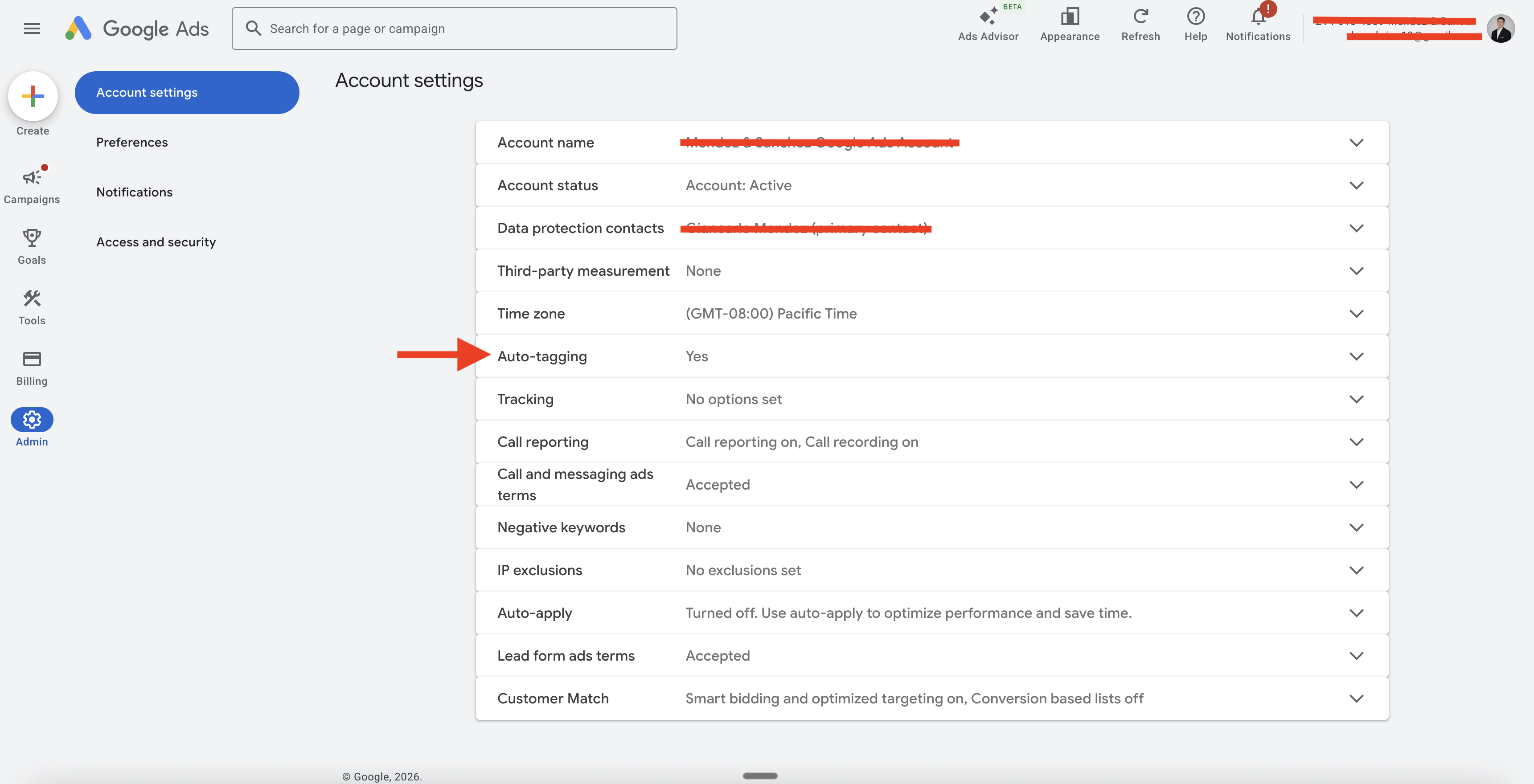
I go into more detail about the full offline conversion import tracking guide in my other post, but turning on auto-tagging is ba asic step to start capturing the data.
Should Auto-Tagging Always Stay On in Google Ads?
Yes. In almost every situation, auto-tagging should be enabled. The only exception is if you have a specific technical reason to use manual tagging exclusively, which is rare.
Auto-tagging gives you automatic data passing between Google Ads and Google Analytics. It populates dimensions like campaign, ad group, keyword, and match type without any manual work. It also enables the conversion data feedback loop that Smart Bidding needs to optimize effectively.
Some marketers worry about using auto-tagging alongside UTM parameters. Good news: they work together. Google Analytics prioritizes GCLID data when both are present, but your UTM tags still get recorded. You're not losing anything by having both enabled.
How to Test GCLID Tracking Without Clicking Your Own Ads
You don't need to waste ad spend clicking your own campaigns to test GCLID functionality. Google allows you to use a test GCLID parameter to verify your setup works correctly.
Simply add ?gclid=TeSter-123 to the end of any landing page URL on your site. For example:
www.yoursite.com/landing-page?gclid=TeSter-123
Load that URL in your browser and check three things.
First, confirm the parameter stays in the URL after the page loads. Some websites, especially those with aggressive redirect rules or certain CMS platforms, strip URL parameters during page rendering. If the GCLID disappears from your address bar, you have a redirect problem to fix.
Second, open your browser's developer tools and navigate to Application, then Cookies. Look for the _gcl_aw cookie. It should contain your test value. If the cookie isn't there, your Google Tag or gtag.js implementation isn't storing the GCLID properly.
Third, submit a test conversion on that page. Fill out your form or complete whatever action triggers your conversion tag. Then check Google Ads conversion tracking or your Google Analytics real-time reports to see if the test GCLID appears.
This test parameter won't attribute to any real campaign since it's not a valid GCLID from an actual click. But it confirms your entire tracking chain works. The URL parameter persists, the cookie gets set, and your conversion tags fire with the GCLID attached.
What Are the Limitations of GCLID Tracking?
Private Browsing and Incognito Mode Break the Chain
GCLID relies on cookies to work. When a user browses in incognito or private mode, most browsers block or delete cookies when the session ends. This breaks the connection between click and conversion.
Here's what happens: the user clicks your ad, lands on your page with the GCLID in the URL, but the cookie either never gets set or gets wiped the moment they close the browser. If they convert in that same session, you might capture it. If they leave and come back later, that conversion looks like direct traffic.
Private browsing usage keeps growing. Some estimates put it at 20-30% of all web sessions. That's a meaningful chunk of your traffic where GCLID attribution simply doesn't work.
Privacy Browsers Like DuckDuckGo Strip GCLID Entirely
Some browsers don't just block cookies. They actively remove tracking parameters from URLs before your page even loads. DuckDuckGo is the most aggressive example.
DuckDuckGo's Link Tracking Protection feature identifies known tracking parameters like gclid, fbclid, and msclkid, then strips them from the URL automatically. The user clicks your ad, but by the time they reach your landing page, the GCLID is gone. Your website never sees it.
Cookie Consent and GDPR Create Gaps
In regions covered by GDPR, CCPA, or similar privacy laws, users must consent to tracking cookies before you can store them. If someone declines cookie consent, you can't save the GCLID. The click data dies on arrival.
This creates a frustrating situation. You paid for that click. The user might even convert. But without cookie consent, you have no way to attribute that conversion back to your ad spend.
Some businesses see a 30-40% decline in tracking consent among European visitors. That's a massive blind spot in your attribution data. Your actual ROAS is likely higher than what Google Ads reports, but you can't prove it.
Safari and iOS Privacy Features Add More Friction
Apple's Intelligent Tracking Prevention (ITP) limits cookie lifespans in Safari. First-party cookies set via JavaScript get capped at 7 days. If your GCLID cookie uses client-side JavaScript, users who return after a week lose their attribution.
What Is The GBRAID URL Parameter?
GBRAID is a tracking parameter Google introduced specifically for iOS devices. It works alongside GCLID but serves a different purpose. While GCLID tracks individual clicks with user-level precision, GBRAID provides aggregated, privacy-compliant attribution.
Apple's App Tracking Transparency (ATT) framework changed everything in 2021. iOS users now must opt in before apps can track them across other apps and websites. Most users decline. This broke traditional GCLID tracking for a huge segment of mobile traffic.
GBRAID was Google's response. When a user clicks an ad on iOS and hasn't opted into tracking, Google appends a GBRAID parameter instead of a GCLID. The parameter looks similar in your
URL: www.yoursite.com/page?gbraid=CLjA4tH8sI0CFQ
But the data behind it works differently. GBRAID doesn't identify individual users. Instead, it groups conversions into aggregated cohorts that maintain user privacy while still giving Google enough signal to optimize campaigns.
For iOS app campaigns, especially, GBRAID has become essential. Without it, you'd have almost no visibility into how your ads perform on iPhone and iPad devices.

Most of the time, when a GBRAID is generated, a gclid is additionally appended to the end to the URL, so you can use it for offline conversion uploads. If only the GBRAID and not the GCLID is generated, then you will have to leverage Google's enhanced conversion for leads offline conversion import method, which relies on using hashed PII information, such as the lead's email.
How Does GCLID Compare to UTM Parameters?
GCLID and UTM parameters solve similar problems but work in fundamentally different ways. Understanding when to use each saves you headaches and gives you cleaner data.
When Should You Use GCLID Instead of UTM Tags?
GCLID is automatic and specific to using Google Ads. It only works for Google Ads traffic. The parameter gets generated at click time with no manual setup required. It passes detailed click information directly to Google's systems, enabling Smart Bidding optimization and conversion tracking.
UTM parameters are manual and universal. They work for any traffic source: Facebook, LinkedIn, email campaigns, affiliate links, and organic social posts. You build them yourself using tags like utm_source, utm_medium, and utm_campaign. They appear in Google Analytics but don't feed data back to ad platforms.
Use GCLID for all Google Ads traffic. It provides richer data, powers automated bidding, and requires zero maintenance. The data passes automatically without you touching URLs.
Use UTM parameters for everything else. Any non-Google traffic source needs manual UTM tagging to show up properly in your analytics. This includes Microsoft Ads, Meta Ads, email marketing, and organic social campaigns.
Can You Run Both Tracking Methods at the Same Time?
Yes. And you probably should.
Google Analytics handles both gracefully. When traffic arrives with both GCLID and UTM parameters, Analytics prioritizes the GCLID data for Google Ads traffic. Your UTM tags still get recorded, but they don't override the more accurate GCLID information.
This matters for reporting consistency. If you tag all your campaigns with UTMs regardless of source, your Analytics reports show uniform campaign naming across channels. The GCLID data lives alongside it, giving Google Ads the detailed click information it needs.
What's Next for GCLID and Google Ads Conversion Tracking?
GCLID isn't disappearing, but its ability to track the path from ad to click to conversion shrinks every year. Privacy browsers strip it from URLs. Cookie consent rates decline. iOS restrictions block traditional tracking for most mobile users.
Google is adapting. Starting February 2026, the Google Ads API restricts session attributes and IP data in conversion imports. The shift toward Data Manager API and Enhanced Conversions signals where things are headed.
The future is hybrid tracking. GCLID remains core for click attribution, but Google now pairs it with GBRAID for iOS, hashed first-party data for Enhanced Conversions, and modeled conversion estimates for privacy-restricted users.
No official deprecation is planned. But smart advertisers aren't waiting. Server-side tracking, first-party data collection, and Enhanced Conversions recover 20-30% of the journey from the ad click that cookie-based tracking misses.
Build redundancy now. The days of relying on a single tracking parameter are ending.
