Offline Conversion Prerequisites
Before you can start uploading offline conversions to Google Ads through Adscriptly, you need to complete the following setup steps in your Google Ads account.
Before you begin
Enable Auto-Tagging for GCLID Tracking
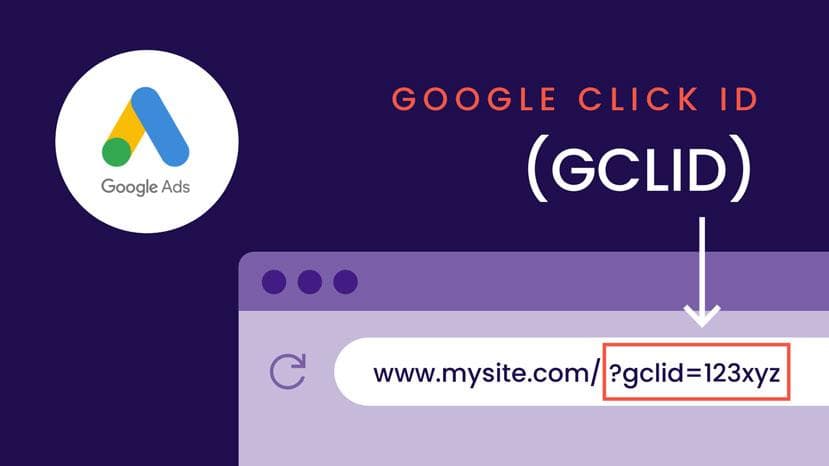
The Google Click ID (GCLID) is a unique identifier that gets automatically appended to your URLs when auto-tagging is enabled. This is essential for matching offline conversions back to the original ad click.
Navigate to Account settings
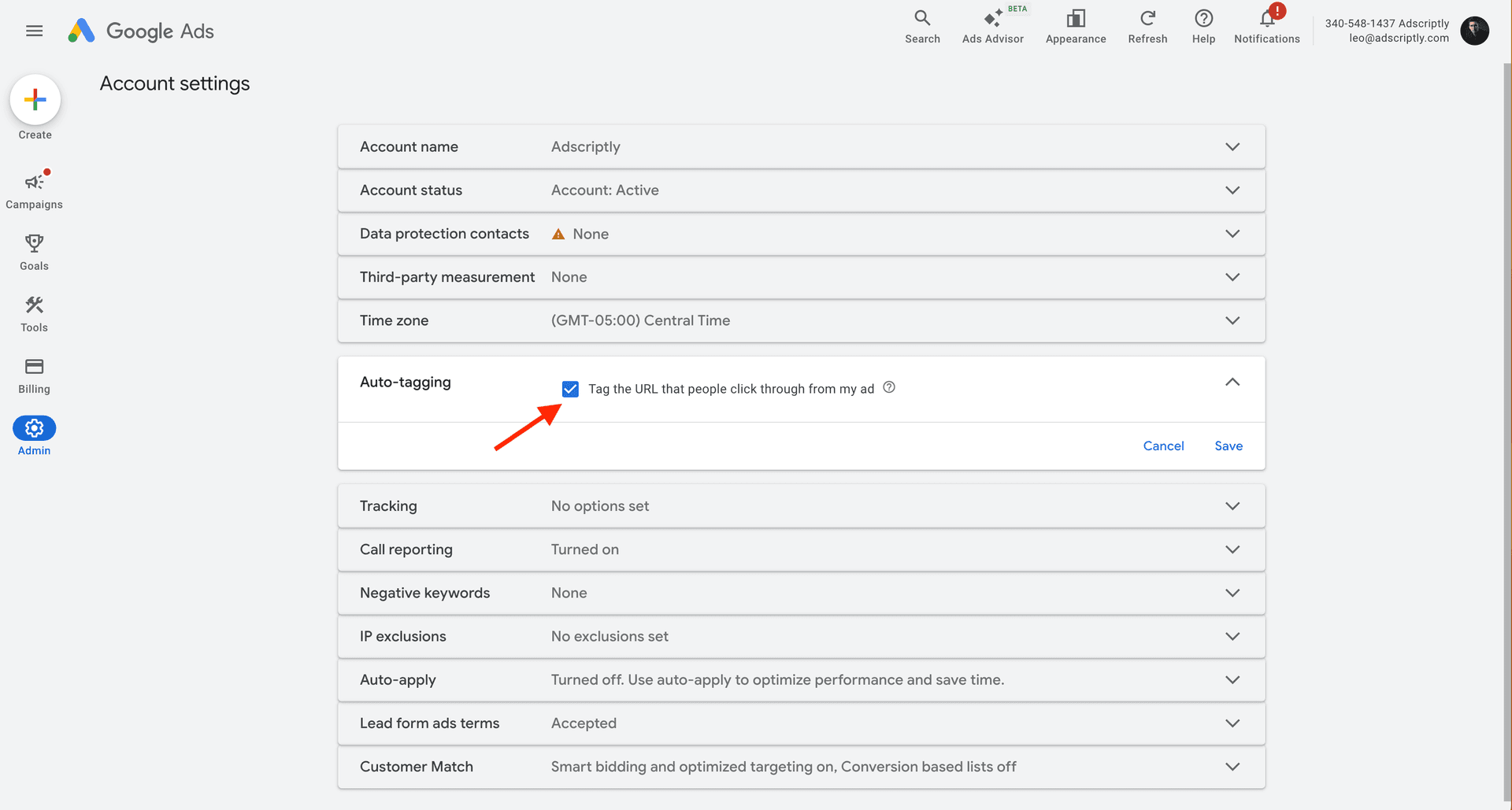
Go to Admin → Account settings in your Google Ads account.
Enable auto-tagging
Under “Auto-tagging,” check the box “Tag the URL that people click through from my ad.”
Important
Enhanced Conversions for Leads
Enhanced conversions for leads is Google’s solution for tracking conversions more accurately in a privacy-focused world. By sending hashed customer data from your lead forms, you can improve conversion measurement and attribution.
Customer data collection
You need to be actively collecting customer information through your lead forms. Enhanced conversions can use:
- Email address (most reliable)
- Phone number
- First name
- Last name
Enable enhanced conversions for leads
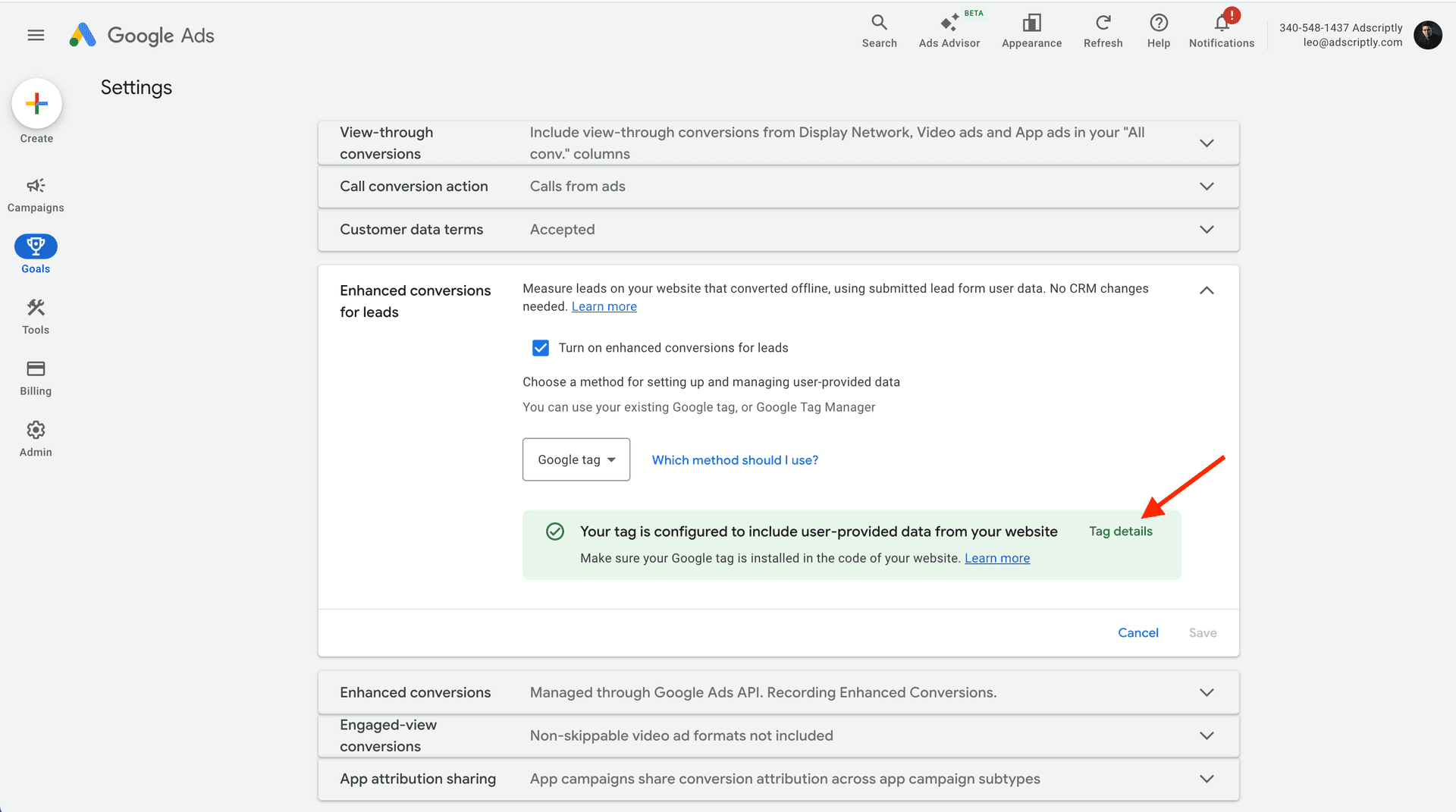
Navigate to Goals → Conversions → Settings, turn on “Enhanced conversions for leads”, and select “Google Tag” from the dropdown.
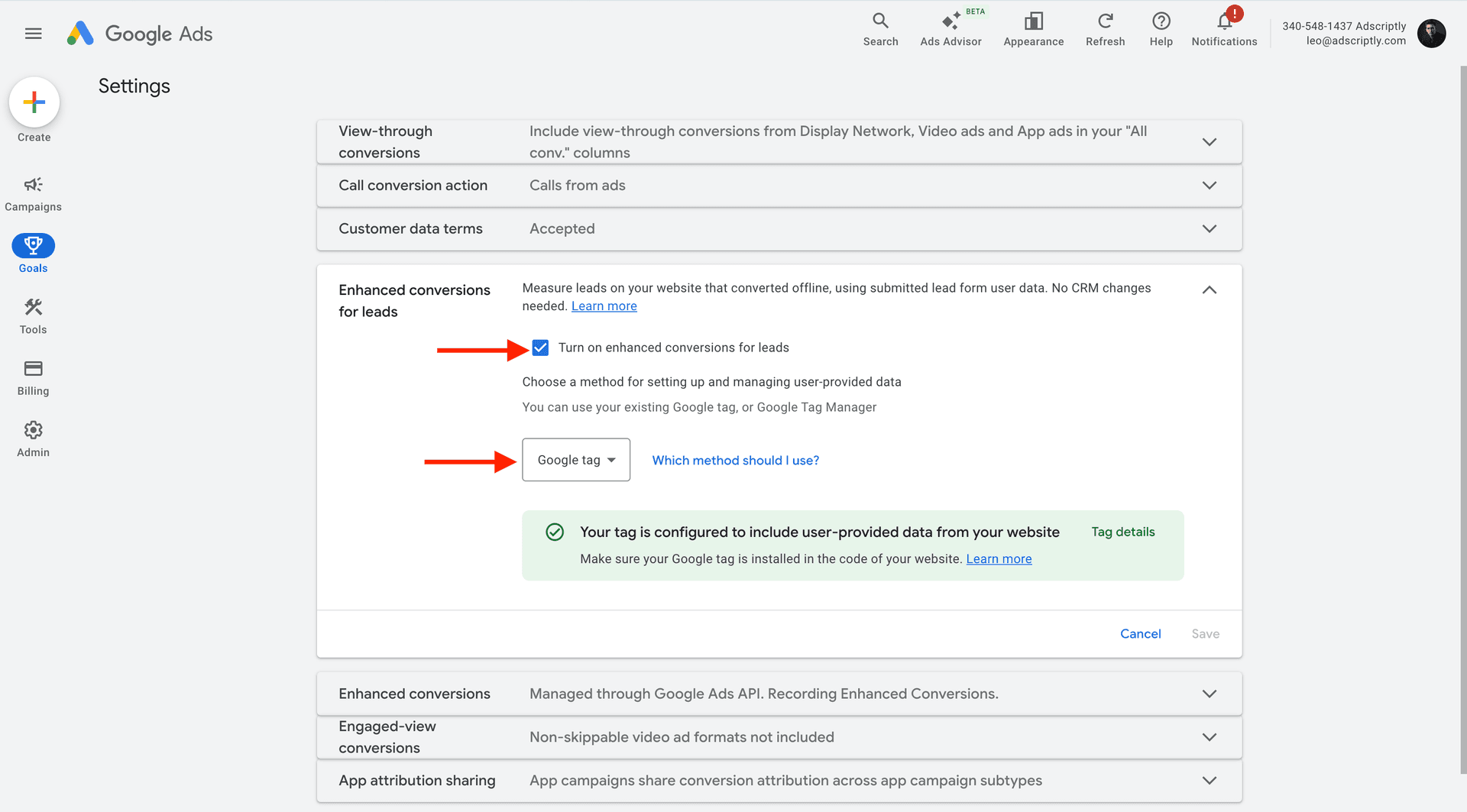
Configure your Google Tag
Open Tag details
Click “Tag details” to expand the tag configuration options.
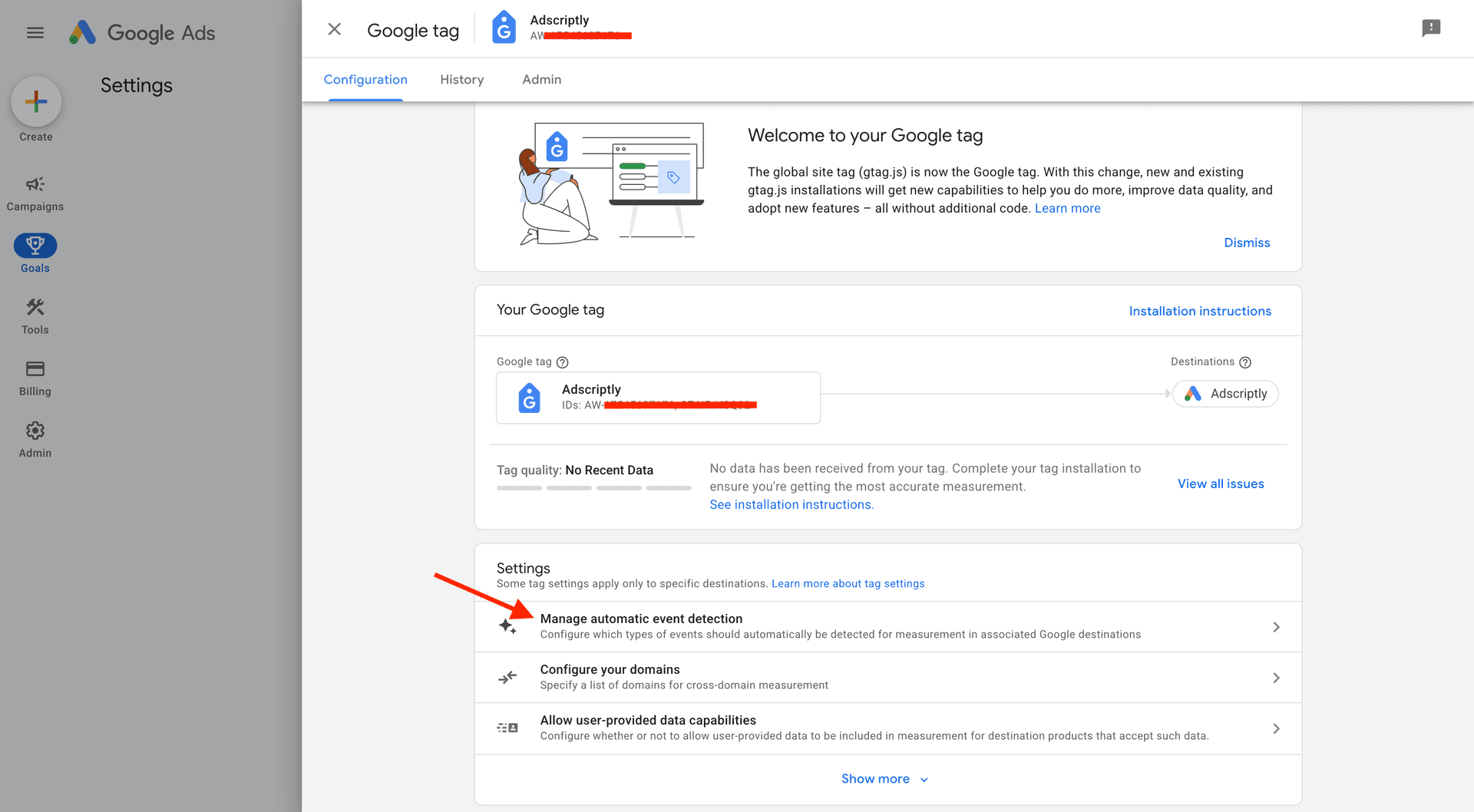
Enable automatic event detection
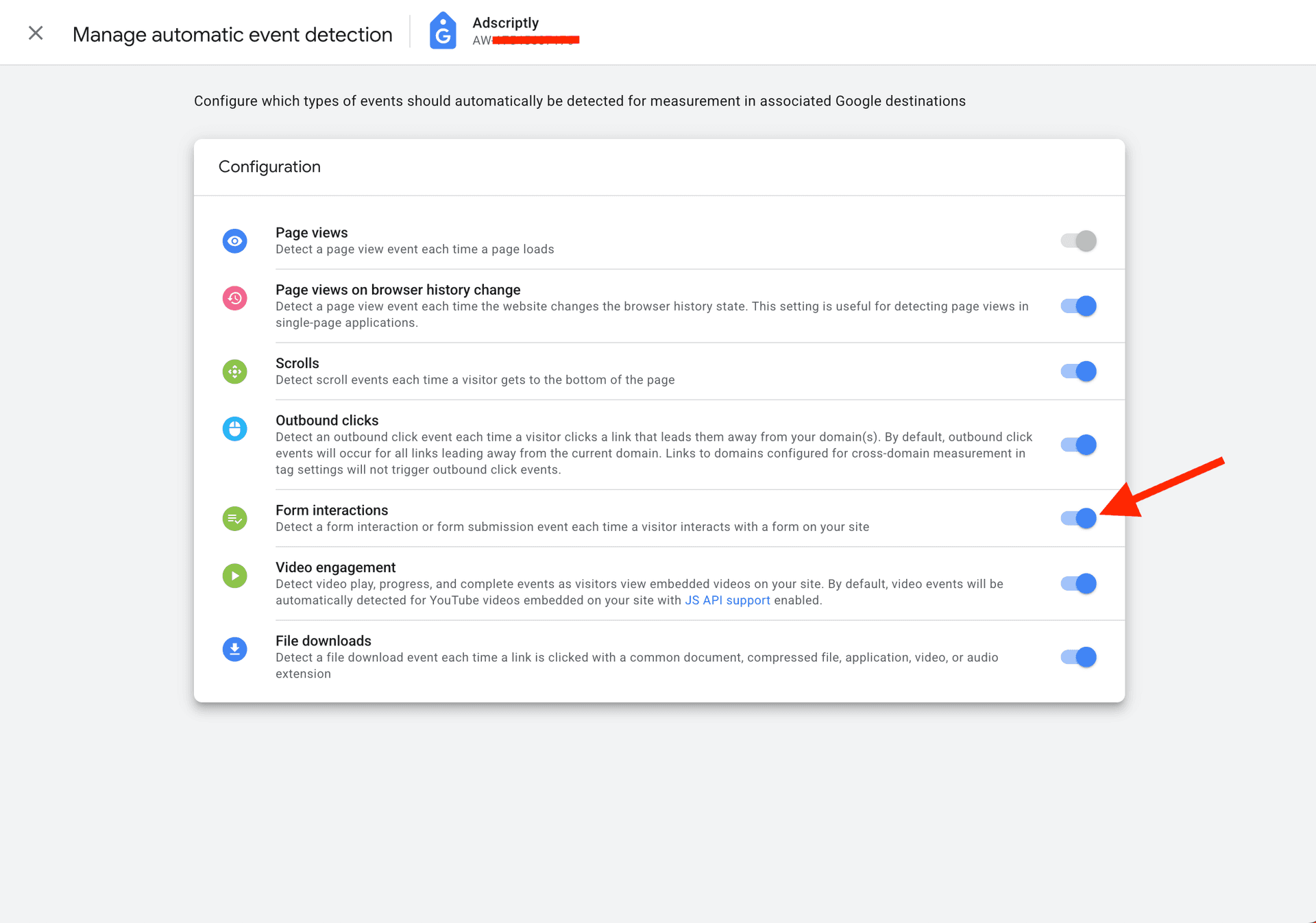
Click “Manage automatic event detection” and toggle on “Form interactions”.
Tip
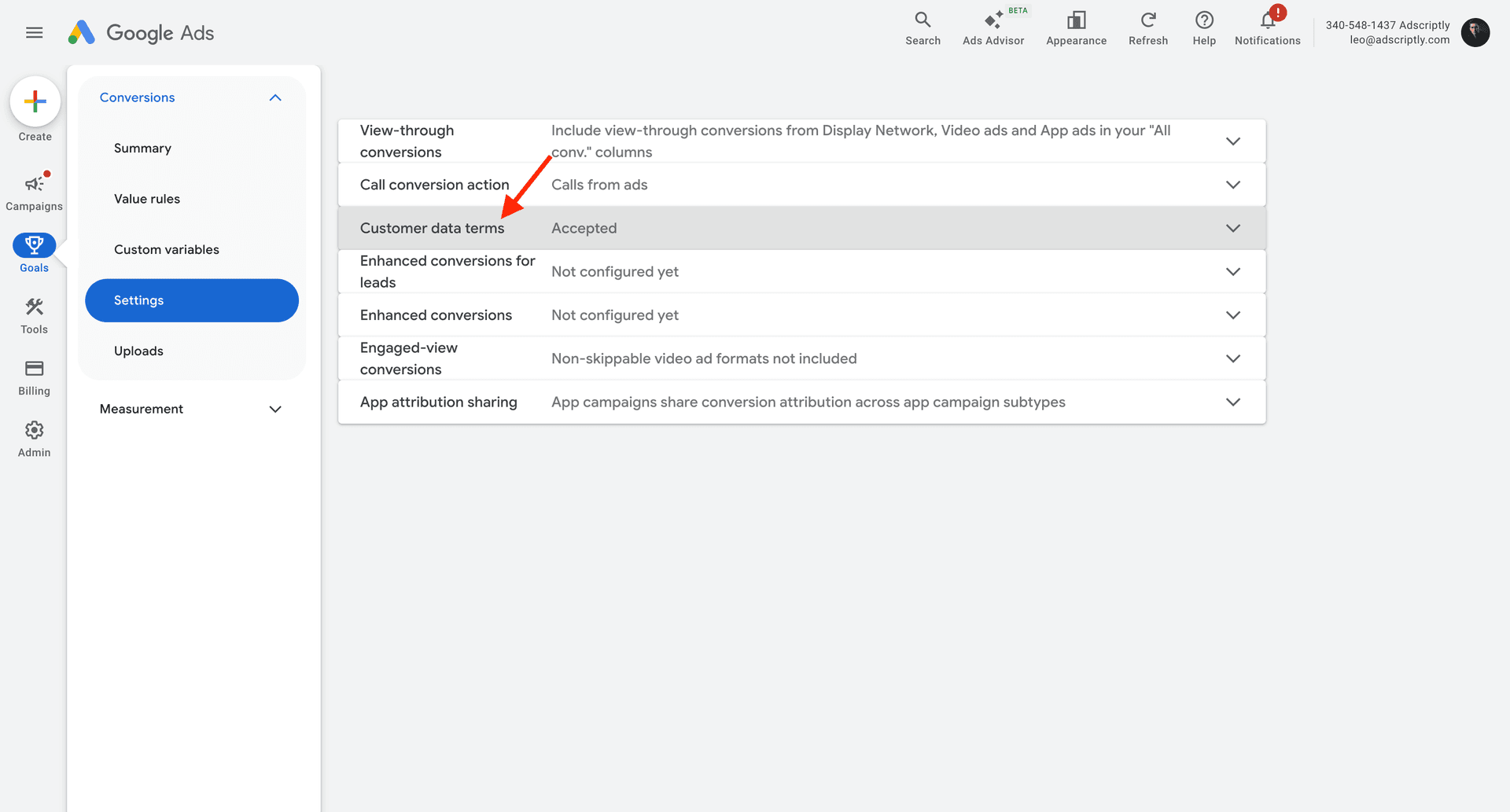
Accept the Customer Data Terms
Before you can use enhanced conversions for leads, you must accept Google’s Customer Data Terms in your Google Ads account. This is a one-time acceptance.
Accept customer data terms
Navigate to Goals → Conversions → Settings and accept the “Customer Data Terms”.